Create a form
Start a new form from the Builder v2 hub—blank, template, or AI draft.
Video coming soon
Create a form
id: academy-create-a-form · ~2–4 min
Audience: Admin
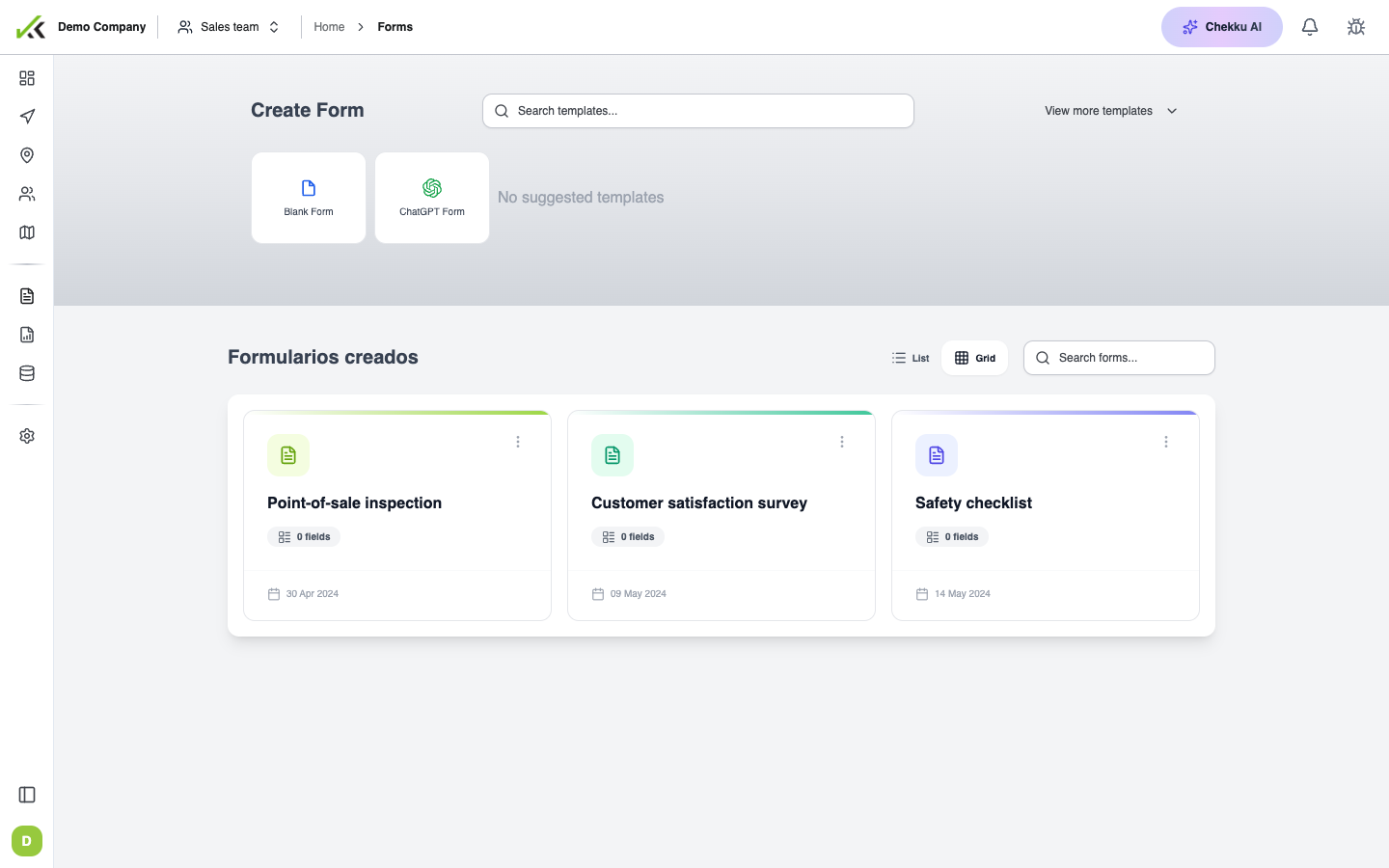
Open Forms → Form Builder in the web app (/app/forms/builder-v2). This hub is where you create new forms and reopen existing ones.
What you see on the hub
The Builder v2 landing page has three main areas:
- Create Form — start something new.
- Templates and AI suggestions — quick starts based on common patterns or a text description.
- Created forms library — search and open forms your team already built.
Use the search box to filter the library by name. Each row shows field count and last update so you can pick up where you left off.
Ways to start
Blank form
Choose Blank Form when you know the structure you want. Chekku opens the editor with an empty canvas and one page. Add fields from the palette, configure settings, then save.
Templates
Suggested templates appear on the hub. Pick one that matches your use case (inspection, delivery proof, service report, and similar). Chekku creates a copy you can edit freely—templates never overwrite your live forms until you save.
Builder AI
Describe the form you need in plain language: required fields, photos, signatures, business rules. Builder AI adds draft fields to the canvas. Review every suggestion, adjust labels and keys, then click Save. AI output is a starting point, not a finished form.
Step-by-step: create from scratch
- Go to
/app/forms/builder-v2. - Click Blank Form (or pick a template / generate with AI).
- The editor opens. Add a Header and your first questions from the palette.
- Open the Settings tab: set the form name, visit types, and notifications.
- Switch preview to Mobile and check readability.
- Click Save to publish the definition to mobile.
After creation
The form appears in the created-forms list. Click Open anytime to continue editing. Changes stay local until you save again; leaving with unsaved edits prompts you to discard or go back.
Tips
- Name forms clearly in Settings—the hub list and mobile both use that name.
- Prefer templates or AI for complex first drafts, then refine manually.
- Configure visit types before telling the field team the form is ready.
- Save early once the name and first fields exist so you get a stable form ID.