Review form responses
Explore submitted answers by summary charts, per-question views, and individual records.
Video coming soon
Review form responses
id: academy-review-form-responses · ~2–4 min
Audience: Admin · Supervisor
After forms go live, the Forms responses explorer on the web helps you analyze what the field captured—without opening every visit one by one. Open it from the main navigation (path /forms-responses in the Chekku web app).
Pick a form
The left panel lists published forms with response counts. Select a form to load its submissions. Use search to find forms quickly when your library is large.
Three analysis tabs
Switch between views depending on the question you are trying to answer:
| Tab | Best for |
|---|---|
| Summary | High-level volume, trends, and chart/table widgets across all responses |
| Question | Distribution or breakdown for a single field (choice counts, averages, etc.) |
| Individual | Row-by-row inspection of each submission with user, place, and timestamp context |
Toggle Chart vs Table in summary mode when you want visuals or raw aggregates.
Date filters
Narrow results with quick ranges—Today, This week, This month, or All time. For custom windows, set Start date and End date (and optional single-day picker) then apply filters.
Date filters affect every tab so comparisons stay consistent while you drill down.
What you can review
Individual records typically show:
- When the response was submitted
- Which visit or check-in produced it
- Field answers—including photos and signatures where present
- Linked user and place metadata
Use Question view to spot training issues (everyone picking Other) or compliance gaps (empty required-equivalent patterns). Use Individual view to investigate a specific customer complaint or audit sample.
Connect to reports and visits
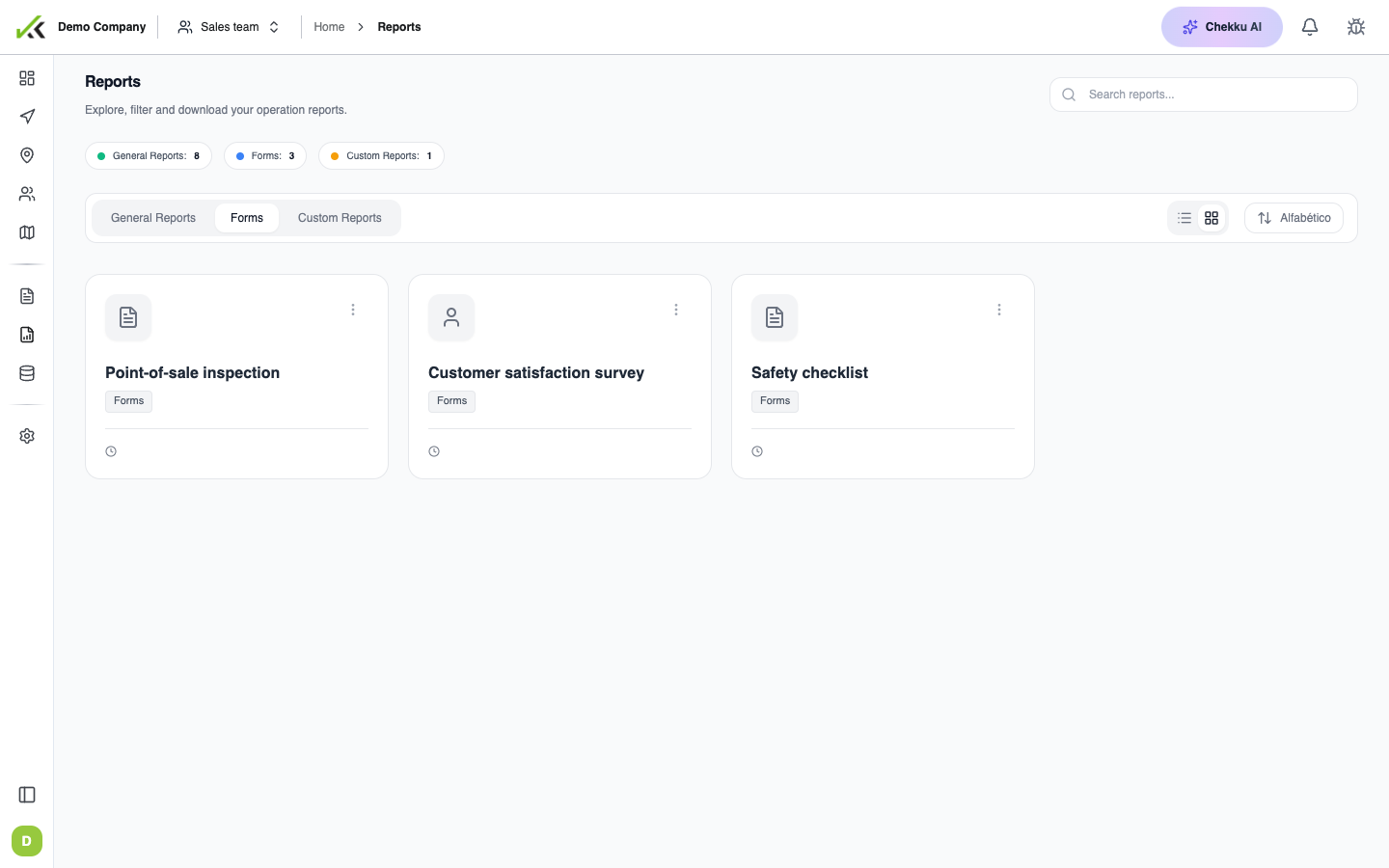
The explorer is ideal for form-centric analytics. For operational rollups—teams, routes, PDF exports, scheduled digests—also use Chekku Reports. See Reports and notifications.
For visit-level context (map, GPS track, activity type), open the related record from Visit control after identifying it in Individual view.
Tips
- Compare the same date range week-over-week in Summary before changing form wording.
- Export or report from filtered views when sharing with clients—confirm filters first.
- If counts look low, verify the form is attached to the visit types your teams actually use.
- Pair with Conditional visibility knowledge: hidden fields may explain sparse columns.