Tasks and follow-ups
Plan field work with map, calendar, and table views—and connect tasks to visits and automations.
Video coming soon
Tasks and follow-ups
id: academy-tasks-follow-ups · ~2–4 min
Audience: Mixed (Supervisor · Admin · Field leads)
Tasks are scheduled assignments: a place, a date, and often a mobile user. They differ from visits, which are recorded when work actually happens in the field.
Three ways to view tasks
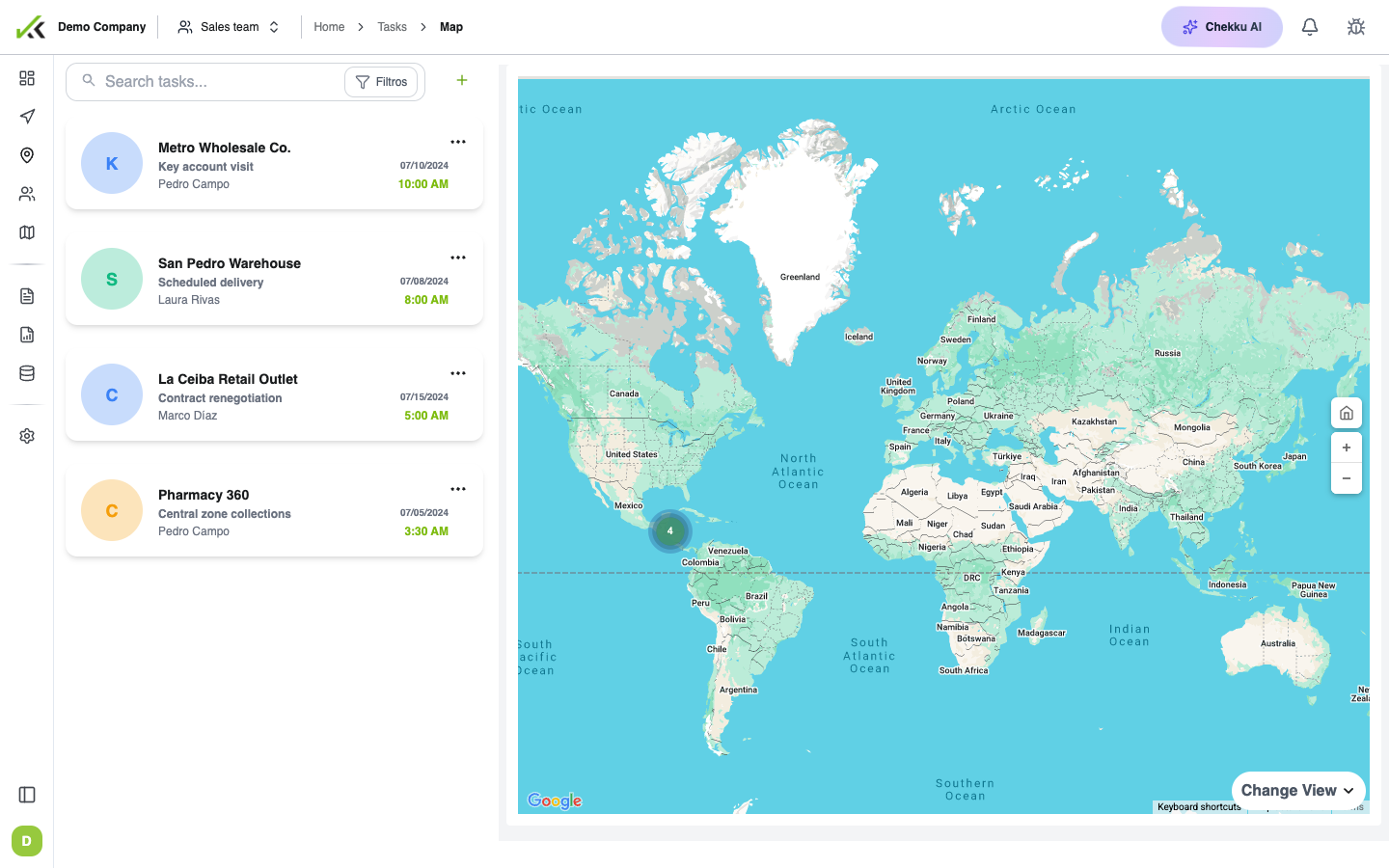
Open Tasks on the web and switch views depending on the question you are answering:
- Map — See geographic spread, plan routes, and spot gaps in coverage.
- Calendar — Plan by week or month; useful for recurring routes and capacity checks.
- Table — Sort, filter, and manage large batches with due dates, places, and statuses in one grid.
Field users see assigned tasks in the mobile agenda; completing the on-site work usually means starting a visit and filling the required forms.
Creating and bulk scheduling
Supervisors and admins create tasks one at a time or through bulk upload (spreadsheet), similar to places import. That fits monthly route plans or campaign rollouts where hundreds of sites need a date and owner.
Keep task titles and places aligned with how field staff recognize work—ambiguous labels show up as missed visits later.
Links from visits and automations
Tasks rarely live in isolation:
- A visit may fulfill a task scheduled for that place and day—confirm on the web that the visit landed on the right assignment.
- Automations (workflows) can create or update tasks when a form is submitted—for example “schedule a follow-up audit in 7 days” or “assign rework to the regional lead.”
- Operations (when enabled) can open a status workflow from certain form submissions; that is separate from a simple calendar task but serves a similar follow-up purpose.
If follow-ups seem missing, check whether the trigger form was submitted and whether the automation is published.
Field habits
- Open the agenda each morning; tasks without a completed visit are still open.
- If plans change on site, add a comment on the visit so the office sees why the task slipped.
Tips
- Use calendar view for weekly stand-ups; use table view for exception sweeps.
- Match task place to the visit place—filters and reports assume they align.
- After bulk import, spot-check three random rows on the map before notifying the team.