Lists from Data Sources
Bind List fields to catalogs, filter rows by answers and visit context, and keep data consistent.
Video coming soon
Lists from Data Sources
id: academy-data-sources-in-forms · ~2–4 min
Audience: Admin
A List field shows rows from a Chekku Data Source—your product catalog, asset registry, price list, or any tabular reference data. Instead of typing free text, field users pick a vetted row. The selection stores the row identity plus any enabled columns you expose for display, formulas, or visibility rules.
Bind a List to a catalog
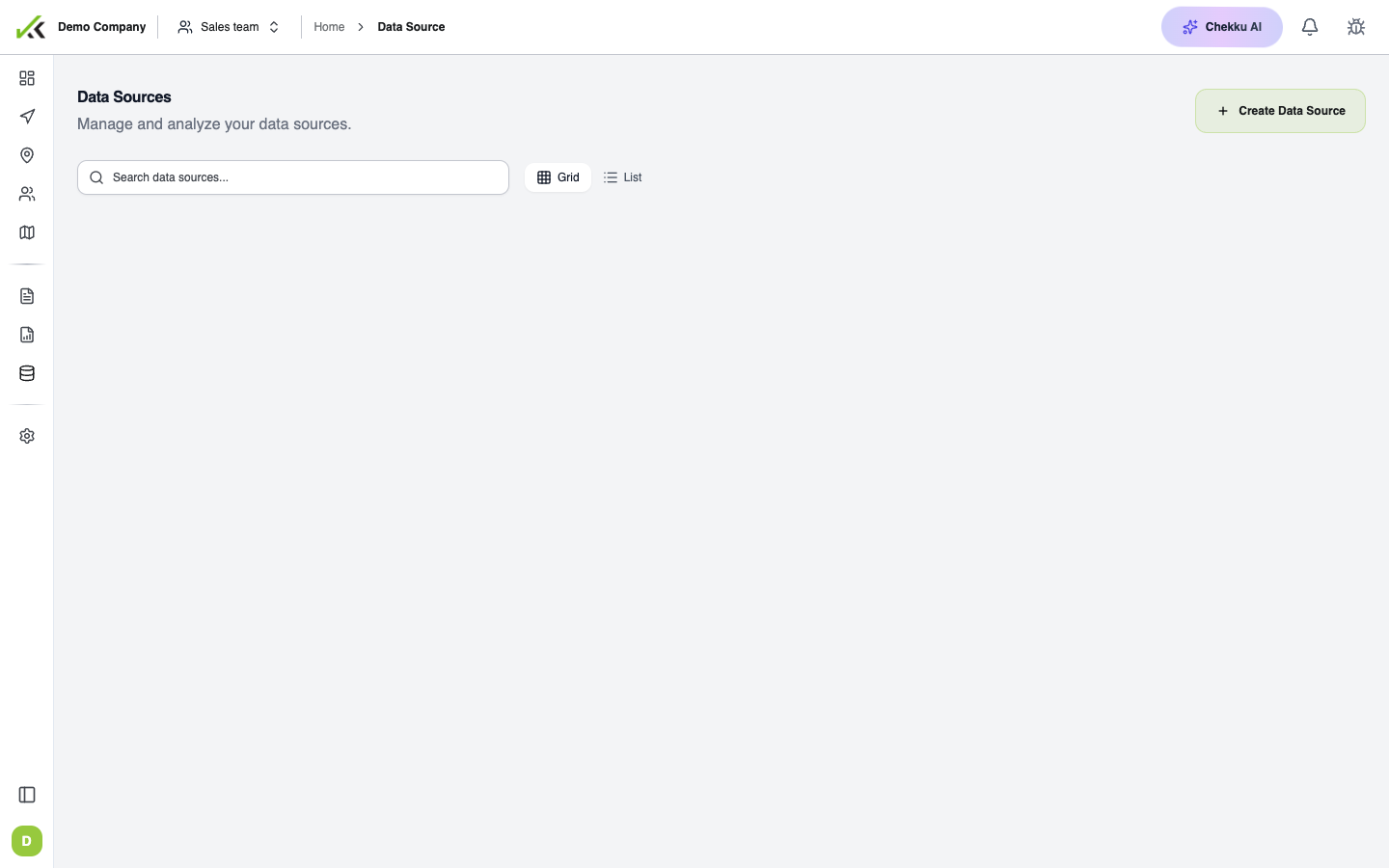
- Create or open a Data Source on the web (columns, types, and rows). See Data Sources for setup.
- In Form Builder, add a List field.
- In field settings, choose Data Source and pick the catalog.
- Enable the columns users should see in the picker (name, code, category, price, etc.).
Publish the form and test on mobile—the list should search and scroll like a compact catalog browser.
Filter lists by other answers
Open List filters on the List field to limit rows before the user searches. Each filter rule has:
- Data source column — the catalog field to test.
- Operator — equals, not equals, contains, starts with, greater/less than, in, not in, is empty, is not empty.
- Filter value — usually another form field answered earlier on the same form.
Example: a Product Data Source with category and region columns. Field Region (radio) filters the SKU list so only rows where region equals the chosen region appear. Field Line (checkboxes) can further narrow category with is one of.
When the driving answer is empty, choose When empty: Ignore filter (show all rows) or Hide options (show an empty list until the user answers).
Visit context filters
Filters can also read visit context—metadata from the active visit rather than a form answer:
| Context | Examples |
|---|---|
| Place | Place ID, place code, place name |
| Visit type | Check-in type ID, check-in type name |
| User | User ID, user name, user email |
| Team | Team ID, team code, team name |
Example: filter spare parts where site_code equals Place code so technicians only see inventory for the customer they are visiting. Another pattern: restrict questionnaires where allowed_activity is one of values matching the current Visit type.
Context filters update automatically when the visit or assignment changes; they do not require an extra question on the form.
Columns in formulas and visibility
Enabled numeric columns can feed Formulas (@equipment.price * @qty). Text or category columns can drive Conditional visibility (@equipment.tier is Gold).
Changing a referenced Data Source may remove columns used elsewhere—review formulas and visibility after catalog edits.
Tips
- Prefer codes (
sku,asset_tag) as stable keys; show friendly name columns in the picker. - Add filters from broad to narrow (region → category → SKU) to keep mobile lists short.
- Load-test with realistic row counts; very large catalogs may need stricter filters.
- Keep one Data Source per business concept; reuse it across forms instead of duplicating options.